
For business users of Microsoft Excel.


This Might Be The Most Useful
Excel Book You'll Ever Read
Here's Why...

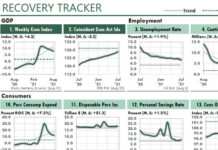
An Excel dashboard showing public financial data from Hoovers.com.
 
An Excel dashboard that compares key metrics for seven different companies.
 

by Charley Kyd
March, 2005

I used to hate spreadsheet reporting.

As a manager, I hated to receive those Excel reports. I hated to slog through those stacks of paper, stacks of reports with many pages with long columns of tiny numbers.

Somewhere...somewhere in all those numbers were key trends and exceptions that I needed to recognize as serious problems and opportunities. I hated the thought that I was missing so much treasure hidden in so much dirt. 

As a spreadsheet user, I hated to prepare those reports. I hated to spend long hours, month after month, turning the crank, producing reports that people often didn't even read.

(One time, I accidentally printed the same variance report for three different departments in the same report. No one noticed.)

The work wasn't hard, but it was such a waste! I knew that if I could spare the time from spreadsheet reporting I could find new ways to improve my company's performance.

The IT department was no help. They knew everything about computers, but nothing about marketing, or accounting, or operations. Like robots, they gave us exactly what we asked for, not what we wanted. Their reports were too long, too expensive, too inflexible. And changes took forever.

Then I found a solution. It was in an old copy of the Harvard Business Review.

The article, written in 1979, was by George Blake, the VP Finance of one of the largest companies in Mexico. It explained how his company was using many small graphs on one page to report management performance.

In seconds, his managers could recognize critical trends. They could compare one measure of performance to another. They could ignore the expected and concentrate on the surprises. They were freed from those many pages of long columns of tiny numbers.

I fell in love with dashboards!

Back then, I was working on my first book, Financial Modeling Using Lotus 1-2-3. Because 1-2-3's charting system couldn't create small charts, I showed how to create "mini-graphs" using text characters in spreadsheets. For example, I used the 1-2-3 equivalent of Excel's REPT function to create bar-graphs using repeated "X" characters.

I know, it was a very primitive solution. But it was a popular one. I got more positive feedback about my mini-graphs than about any other topic in the book.

Then Excel was introduced, and I fell in love all over again. Finally, with Excel, I could produce true mini-charts. I could create "magazine-quality" management reports.

Unfortunately, however, that wasn't my job. As a consultant, my job was to help companies develop OLAP databases and basic Excel reports. As one new client told me, "You hate pages of columns of numbers? We want them, because right now, we don't have anything... except the garbage that IT gives us!"

So for years I've been working on ways to create and improve Excel dashboards. But I've done it as a labor of love, and of hate. I love seeing reports that I can understand at a glance, and I hate seeing reports that resemble the New York City phone book.

Finally, when I launched ExcelUser.com last year, I decided to show Excel users the truly amazing results we could get by dashboard reporting with Excel. The main dashboard page quickly became the second-most visited page on this site.

I think that the reason for this interest is that most Excel users, and their managers, have the same problems with management reports that I used to have. In companies found in every corner of the globe, truly dreadful Excel reports overwhelm millions of readers every single day. Excel dashboards offer an inexpensive and flexible way for managers to understand the data that drives their business.

That was as far as I intended to take dashboards until I searched Google one night. First, I searched for "dashboards" and got 417,000 results. Then I searched for "Excel" and got 35,800,000 results. Then I searched for the phrase "Excel dashboards".

How many results would you expect? Thousands? Excel is a great program for dashboard reporting. Hundreds of thousands?

Google returned only 231 results...204 of which came from this web site, ExcelUser.com!

In other words, statistically speaking, NOBODY knows anything about dashboard reporting with Excel!

I had to write a book! I had to tell Excel users about the reporting power that they already have at their fingertips! If I didn't write the book, nobody else would.

I started around Thanksgiving, thinking I could get it done in a month or so. Yeah, sure. I finally got it done this week. If you're one of the many people who've been asking me when I would finally get it done, I'm sorry that my estimates were so far off base.

The book is 148 pages long. It explains two things. First, it explains how to create great-looking dashboard reports. Second, it explains ways to make both your dashboards and your other reports easier to create and update by using a spreadsheet database.

Here's a description about each chapter:

1. The Advantages of Dashboard Reporting With Excel. This short introductory chapter tells much about what you already know if you spend much time on this site: Excel can produce great dashboard reports. I call them "magazine-quality" reports. I also introduce the Management-Reporting Pyramid, which is the best way I've found to describe the level of detail that managers need in their reports.

2. How to Create Mini-Charts for Dashboard Reporting. Mini-charts are a key ingredient of dashboard reporting. This chapter provides step-by-step instruction about how to create them. I recently used the techniques I describe in this chapter to create a dashboard that contains 110 useful charts on one printed page.

3. Charting Techniques for Dashboard Reporting. There's more to dashboard reporting than merely creating small charts. This chapter discusses a variety of other techniques to enhance charting for dashboard reporting. I compare gauges, which Excel doesn’t support, to far better display methods that Excel does support.

4. Create Figures that Use Both Charts and Worksheets. Much of dashboard reporting uses spreadsheet cells to complement charts. This chapter describes typical techniques. The chapter also explains how to force charts to work together. In the last figure above, for example, each column of charts uses the same Y-axis values. This allows readers to visually compare each company’s performance within each column.

5. How to Use Excel’s Camera Tool. Most users ignore Excel's Camera Tool, but it's crucial for dashboard reporting with Excel. This chapter describes a variety of reporting techniques that only the Camera Tool can achieve. For example, the chapter describes the Mini Briefing Book, which uses the Camera tool to display both a landscape and a portrait figure on one printed page. Both tables are dynamic; they change as the data changes.

6. How to Funnel Data into Dashboard Reports. At first glance, dashboard reporting is all about ways to create a good-looking report page. But the real challenge for Excel users is this: How do we update Excel easily so that dashboards don’t quickly send us to Spreadsheet Hell? This chapter surveys the techniques that are available, including PivotTables, Excel-friendly OLAP, and the INDEX-MATCH functionality.

7. How to Use Spreadsheet Databases for Dashboard Reporting. In my experience, most spreadsheet databases are badly managed. As a consequence, they often cause more trouble than they're worth. This chapter explains a simple way to set up spreadsheet databases for reliable spreadsheet reporting.

8. How to Build Dashboard Reports in Excel. This is the key chapter in the book. It explains the steps necessary to create dashboard reports like the ones shown above. More importantly, it explains how you can update these dashboards in seconds. Eight steps are required to build the report: (1) Create a mock-up report page. (2) Determine your dashboard design. (3) Add the Control sheet and first data sheet. (4) Create the first mini-chart figure. (5) Set up data for the other charts. (6) Set up the other charts. (7) Set up the other figures. (8) Make it all fit.

9. Magazine-Quality Dashboard Designs. As a general rule, Excel users aren't known for their artistic skills. This can be a problem when we're trying to create dashboard reports that look like they came from a magazine So what can we do if we don't have the skills to create good-looking designs? We steal them, of course. Personally, I often rip off designs and color schemes from business magazines. Usually Business Week. This chapter provide a variety of charts and tables that illustrate my thieving techniques. For each illustration I briefly describe how to create versions of those figures using Excel.

Information-rich Excel dashboards offer the most effective way I know to explain business performance. Excel users typically can modify these reports in a few minutes, if the data is available. This means that managers finally can have the information they need, when they need it, in a format that they can understand easily. Finally, Excel users can use Excel to clearly communicate business information.

As far as I can tell, I'm the only person in the world who has figured out how to create good-looking Excel dashboards, and update them easily. And Dashboard Reporting With Excel is the only book that shows you what I've learned.

Get the 150-page e-book risk-free for 30 days!

30-Day, Unconditional Money-Back Guarantee: If you're not completely satisfied with the Dashboard Reporting With Excel, I'll gladly refund your money.

Only $29.95 for the Excel Dashboard Kit


Click here to order now!


Get your Adobe Acrobat Reader for PDF documents now!If you don't already have Adobe Acrobat PDF Reader, you can download a FREE copy here. You'll probably use it a lot.

To open the Zipped version, you'll need to install a program like WinZip. You can download a free copy here.

The pdf file will be delivered immediately in one Zip file. Not only do you get everything you need to create your own dashboard reports, you save more than 60% off the individual prices. Click here to order now.

I accept Visa, Mastercard, American Express, and Discover.

Here's some additional information about ordering:

If you have any problems downloading or un-zipping these files, contact me immediately. I'll make sure to get you what you need. If you have questions about the book or spreadsheet examples, I'll make every effort to answer your questions in a timely manner.


ExcelUser, Inc.
http://www.ExcelUser.com

Copyright © 2004 - 2008 by Charles W. Kyd, all rights reserved. Content, graphics, and HTML code are protected by US and International Copyright Laws, and may not be copied, reprinted, published, translated, hosted, or otherwise distributed by any means without explicit permission. Terms of Use | Privacy Policy | Earnings Policy.