



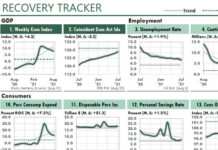

This tutorial explains how to create this figure in Excel. Even if you
don't need a figure like this, just creating it will teach you about
useful but little-used areas of Excel: the Camera object, grouped
worksheets, and transparent AutoShapes. Setting Up the Data in ExcelStart by creating a rough version of the simple table shown below. Enter the three-word title shown in cell C2. To center it in the four columns as shown, select the range C2:F2 and chose Format, Cells. In the Format Cells dialog, specify Center Across Selection for the horizontal text alignment. In cell B10, enter "Total" followed by three spaces. Then click on the Align Right button on your toolbar to position the label as shown. Enter the data in every other row, as shown. To expand the row heights, first select the entire rows 2 through 10. To do so, click and drag your mouse pointer from the row header for row 2 through the row header for row 10. Then, when you hover over the border between any two of the selected rows, your mouse pointer will change shape. When it does, you can click and drag to make the rows taller.
After they are about tall enough, select rows 5 and 7 to make them shorter. To do so, select row 5; hold down your Control key; then select row 7. Now, when you click and drag the height of one of the rows, the other row adjusts to the same height. Select all of the data and vertically align the text to the center of their rows. To do so, choose Format, Cells. In the Alignment tab, in the Vertical list, choose Center. Indent the three company names slightly. To do so, select the range B4:B8. Choose Format, Cells. In the Alignment tab, in its Horizontal list box, choose Left (Indent). And then specify an Indent of 1. Adjust the column widths about as shown. You'll have the chance to adjust them again later. Don't worry about the precise row heights or column widths at this point. You'll be able to adjust them later. To assign a number format for the data, select the area with the
numbers. Then choose Format, Cells. In the Number tab, choose Custom.
Then select the "#,##0" format near the top of the Type list. Set Up the Second WorksheetYou will create this display using two worksheets that have identical row heights and column widths. You will see why this is important in a few minutes. To set up the second worksheet, you copy the first one. The easiest way to do that is to hold down your Ctrl key then click and drag the tab at the bottom of your worksheet to the right. When you do so, Excel adds a small image of a document with a plus sign to your mouse pointer. Once you see that plus sign you can release your mouse button to copy the worksheet. Alternatively, to copy the worksheet, you can right-click on the tab, choose Move or Copy, and then complete the instructions in the Move or Copy dialog. Name the left sheet Report and the right sheet Data. To do so, double-click the text in a tab to select it. You now can enter the label. In the Report sheet, select all data and delete it using your Delete key. You now have two worksheets with identical formats in your workbook. The Report sheet will contain the formatting and drawing objects, but no data. The Data sheet will contain data, but only minimal formatting. Finally, for future convenience, assign the range name Data to your data range of data in the Data sheet. To do so, choose Insert, Name, Define. In the Define Name dialog, enter the name Data and a Refers-To reference of: =Data!$B$2:$G$10 Set Up the Excel Drawing ObjectsBefore you can set up drawing objects, you need to make sure that your Drawing toolbar is displayed. Choose Tools, Customize. In the Toolbars tab, make sure that Drawing is checked. Then choose OK. First set up the brown rectangle object. To do so, click AutoShapes in the Drawing toolbar; in the Basic Shapes menu item, choose the Rounded Rectangle object. When you do so, Excel turns your mouse pointer to a cross bar. Click and drag in the general area of the rectangle shown here.
To position the rectangle, hold down your Alt key then click and drag the rectangle. As you do so, notice that the object jumps from cell to cell. This makes it easy for you to position the top-left corner of the rectangle in cell C2. After the top-left corner is in cell C2, position the bottom-right corner in cell F11. To do so, select the rectangle; hold down your Alt key, click on the selector circle near the bottom right corner of the object; then click and drag the bottom-right corner into into the bottom-right corner of cell F11. Similarly, create a second Rounded Rectangle object and position it within the range B4:G4. Copy the rectangle and paste it three times. Position two of the
copies in B6 and B8 as shown. Position the last copy in cell B10. Then
click on the last object's center selection handle at its left side and drag
the handle to the right. As you do so, you reduce the object's width.
Position the left side about as shown in the figure. Format the Rounded RectanglesDisplay Any Colors in Excel explains how to set up any colors you want for your display. For now, let's assign a standard Excel color to the first object. To do so, select the object, right-click it, and choose Format AutoShape. In the Colors and Lines tab, in the Fill dropdown list, choose the Brown color, which is the darkest orange color. In the Line dropdown list, choose No Line.
Now you can click a cell in your spreadsheet and drag the selection grid to surround the four rectangles that you need to format. When you release your pointer, Excel selects all objects that are entirely within the selection grid. To dismiss the Select Objects tool, press the Esc key. With the other four selected (the ones that are dark green), begin as you did before. Right-click any of the selected objects, choose Format AutoShape. In the Colors and Lines tab, in the Fill dropdown list, choose the Dark Green color. In the Line dropdown list, choose No Line. Also, however, slide the Transparency slider to 50%. Then choose OK.
You have one more adjustment to make. The rounded corners of your brown rectangle probably will be much larger than the ones shown above. To make the rounded corners smaller, click on the object. When you do so, you'll see a yellow handle in the top-left corner of the object. Drag the yellow handle up and to the left to make the corners smaller. (You could drag the handle down and to the right to make the rounded corners larger.) Your five objects now should look somewhat like they do in this
figure, but your colors will be different. Add Excel's Camera ObjectExcel's Camera object returns a picture of the range that it references. It works great for this application. (Warning: Do not use the Camera object to display charts. A bug in Excel could resize your charts if you point a Camera object at them.) You can use Camera objects without using the Camera icon. But if you
intend to use the Camera tool a lot (which I do), you can set up its
icon on one of your Excel toolbars. To do so, choose Tools, Customize.
In the Commands tab, select Tools in the Categories list. In the
Commands list, scroll about 60% of the way down the list, where you'll
see the Camera icon,
To set up the Camera tool for this report, first create a Camera object on your Report sheet. To do so, temporarily enter any character in cell A1. To create the object with the Camera tool, first select cell A1. Click on the Camera icon, then click on any nearby cell. When you do so, Excel drops a live picture of cell A1 wherever you clicked. To create the object without using the Camera tool, copy cell A1 and then select a nearby cell. Hold down your Shift key and then choose Edit, Paste Picture Link. When you do so, Excel copies the Camera tool object to the active cell. Select the Camera object if necessary. Notice the formula =$A$1 in the formula bar. To get the Camera object to display the data in the Data sheet, this formula needs to reference the range that contains those numbers, which is named Data. To modify the formula, select it in your formula bar and enter: =Data When you press Enter, the camera object should display a picture of your data from your Data sheet. Now you can erase the character you entered in cell A1 of the Report
sheet. Format Excel's Camera ObjectInitially, the next step might look like you've made a mistake. You need to move the Camera object into position on top of your colored rectangles. To do so, first select the Camera object. Hold down your Alt key. Then click and drag the object so that its top-left corner is positioned in the top-left corner of cell B2. If you used the Camera tool to create your Camera object, the object
will obscure your colored rectangles, and it will have a border line. To
remove those settings, right-click the object and choose Format Picture.
In the Colors and Lines tab, set the fill color to No Fill and the line
color to No Line. Format Your DataBecause the rounded rectangles have a dark color, the black font doesn't show up very well against them. You therefore need to change the font color to white. To do so, first select the data range. To do so quickly press the F5 function key to launch the Go To dialog, type Data in the Reference box, then press Enter. With the Data range selected, assign a white font using the Font Color icon on your Excel toolbar. Now, when you activate the Report sheet, you should see your report's white fonts displayed on top of your colored rectangles.
| ||||||||||||||||||||||||||||||||||||||||||||||||||||||||||||||||||||||||||||||||||||
|
ExcelUser, Inc.
http://www.ExcelUser.com
Copyright © 2004 - 2008 by Charles W. Kyd, all rights reserved. Content, graphics, and HTML code are protected by US and International Copyright Laws, and may not be copied, reprinted, published, translated, hosted, or otherwise distributed by any means without explicit permission. Terms of Use | Privacy Policy | Earnings Policy. |
||||||||||||||||||||||||||||||||||||||||||||||||||||||||||||||||||||||||||||||||||||
|
||||||||||||||||||||||||||||||||||||||||||||||||||||||||||||||||||||||||||||||||||||